---
title: "R Packages"
subtitle: "Lecture 25"
author: "Dr. Colin Rundel"
footer: "Sta 323 - Spring 2024"
format:
revealjs:
theme: slides.scss
transition: fade
slide-number: true
self-contained: true
execute:
echo: true
---
```{r setup}
#| message: False
#| warning: False
#| include: False
knitr::opts_chunk$set(
fig.align = "center", fig.retina = 2, dpi = 150
)
options(width=50)
options(tibble.width = 50)
```
## What are R packages?
R packages are just a collection of files (R code, compiled code, data, documentation, etc.) that live in your library path.
. . .
::: {.small}
```{r}
.libPaths()
```
:::
. . .
::: {.small}
```{r}
dir(.libPaths())
```
:::
## Search path
When you run `library(pkg)` the functions (and objects) in the package's namespace are attached to the global search path.
::: {.small}
```{r}
search()
```
:::
. . .
::: {.small}
```{r}
library(diffmatchpatch)
```
:::
. . .
::: {.small}
```{r}
search()
```
:::
## Loading vs attaching
If you do not want to attach a package you can directly use package functions via `::` or load the package with `requireNamespace()`.
:::: {.columns .small}
::: {.column width='50%'}
```{r}
loadedNamespaces()
```
:::
::: {.column width='50%' .fragment}
```{r}
requireNamespace("forcats")
loadedNamespaces()
```
:::
::::
##
::: {.small}
```{r}
search()
```
:::
## Where do R packages come from?
We've already seen the two primary sources of R packages:
#### CRAN:
::: {.small}
```{r}
#| eval: False
install.packages("diffmatchpatch")
```
:::
#### GitHub:
::: {.small}
```{r}
#| eval: False
remotes::install_github("rundel/diffmatchpatch")
```
:::
there is one other method that comes up (particularly around package development), which is to install a package from local files.
#### Local install:
From the terminal,
::: {.small}
```{bash eval=FALSE}
R CMD install diffmatchpatch_0.1.0.tar.gz
```
:::
or from R,
::: {.small}
```{r}
#| eval: False
devtools::install("diffmatchpatch_0.1.0.tar.gz")
```
:::
## What is CRAN
The Comprehensive R Archive Network which is the central repository of R packages.
* Maintained by the R Foundation and run by a team of volunteers, ~20k packages
* Retains all current versions of released packages as well as archives of previous versions
* Similar in spirit to Perl's CPAN, TeX's CTAN, and Python's PyPI
* Some important features:
* All submissions are reviewed by humans + automated checks
* Strictly enforced submission policies and package requirements
* All packages must be actively maintained and support upstream and downstream changes
::: {.aside}
See [Writing R Extensions](https://cran.r-project.org/doc/manuals/r-release/R-exts.html)
:::
## Structure of an R Package
{fig-align="center" width="100%"}
::: {.aside}
From [A Quickstart Guide for Building Your First R Package](https://methodsblog.com/2015/11/30/building-your-first-r-package/)
:::
## Core components
* `DESCRIPTION` - file containing package metadata (e.g. package name, description, version, license, and author details). Also specifies package dependencies,
* `NAMESPACE` - details which functions and objects are exported by your package
* `R/` - folder containing R script files (`.R`)
* `man/` - folder containing R documentation files (`.Rd`)
## Optional components
The following components are optional, but quite common:
* `tests/` - folder contain unit tests
* `src/` - folder containing code to be compiled (usually C / C++)
* `data/` - folder containing example data sets
* `inst/` - files that will be copied to the package's top-level directory when it is installed (e.g. C/C++ headers, examples or data files that don't belong in `data/`)
* `vignettes/` - long form documentation, can be static (`.pdf` or `.html`) or literate documents (e.g. `.qmd`, `.Rmd` or `.Rnw`)
## Package contents
:::: {.columns .small}
::: {.column width='50%'}
Source Package
```{r}
fs::dir_tree("~/Desktop/Projects/diffmatchpatch/")
```
:::
::: {.column width='50%'}
Installed Package
```{r}
fs::dir_tree(system.file(package="diffmatchpatch"))
```
:::
::::
## Package Installation
{fig-align="center" width="80%"}
::: {.aside}
R Packages (1e) - Chap. 4
:::
## Package Installion - Files
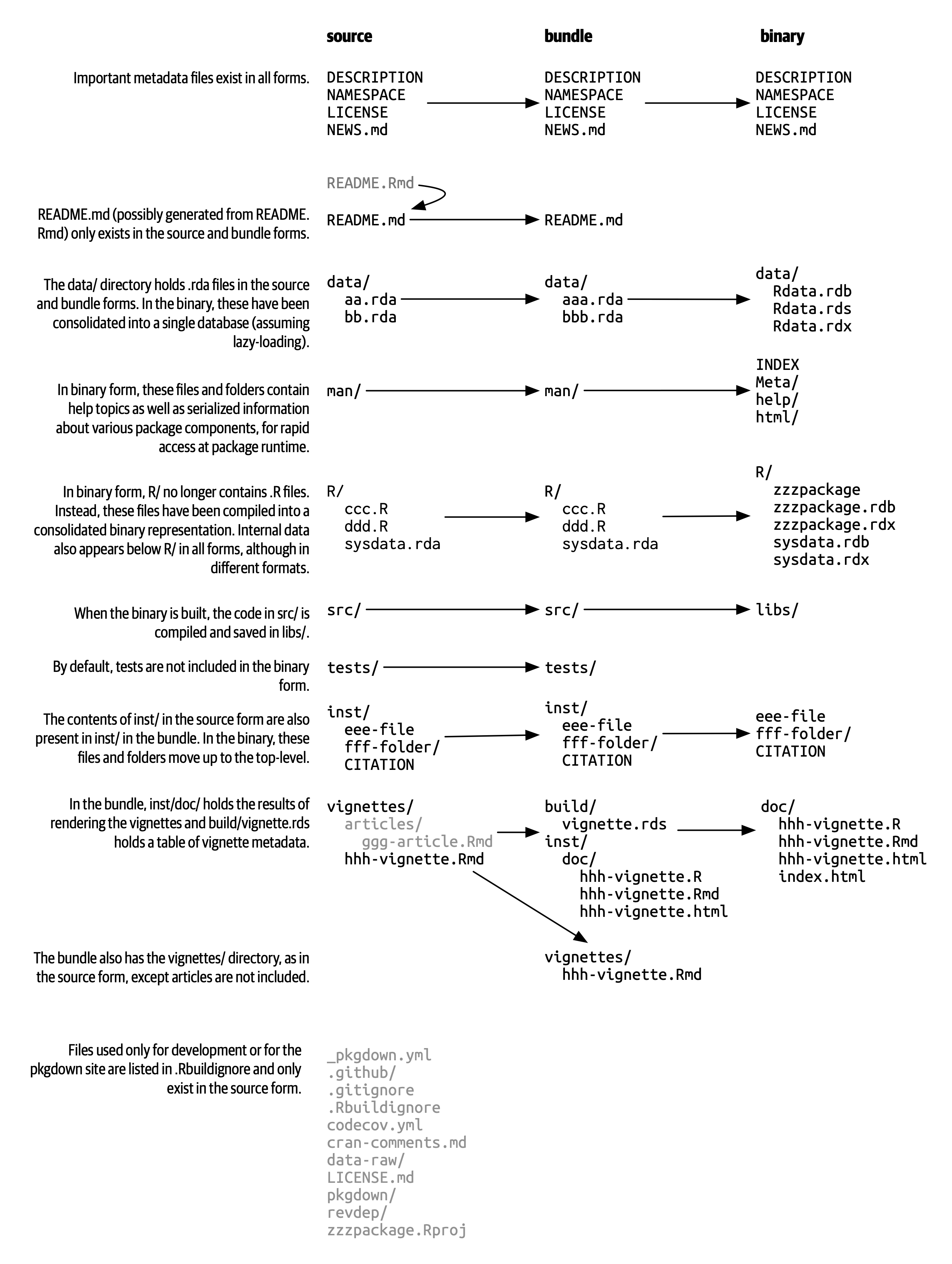{fig-align="center" width="50%"}
::: {.aside}
From [R Packages (2e) - Chap. 3.3](https://r-pkgs.org/structure.html#sec-bundled-package)
:::
## Package development
What follows is an *opinionated* introduction to package development,
* this is not the only way to do thing (none of the following are required)
* I would strongly recommend using:
* RStudio
* RStudio projects
* GitHub
* usethis
* roxygen2
* Read and follow along with R Packages (2e) - [Chap. 1 - "The Whole Game"](https://r-pkgs.org/whole-game.html)
#
{fig-align="center" width="40%"}
## `usethis`
This is an immensely useful package for automating all kinds of routine (and tedious) tasks within R
* Tools for managing git and GitHub configuration
* Tools for managing collaboration on GitHub via pull requests (see `pr_*()`)
* Tools for creating and configuring packages
* Tools for configuring your R environment (e.g. `.Rprofile` and `.Renviron`)
* and much much more
# Live demo
Building a Package
## Choosing a license
An important early step in developing a package is choosing a license - this is not trivial but is important to do early on, particularly if collaborating with others.
There are many resources available to help you choose a license, including:
::: {.center .large}
:::
# Package data
## Exported data
Many packages contain sample data (e.g. `nycflights13`, `babynames`, etc.)
Generally these files are made available by saving a single data object as an `.Rdata` file (using `save()`) into the `data/` directory of your package.
* An easy option is to use `usethis::use_data(obj)` to create the necessary file(s)
* Data is usually compressed, for large data sets it may be worth trying different options (there is a 5 Mb package size limit on CRAN)
* Exported data must be documented (possible via roxygen)
## Lazy data
By default when attaching a package all of that packages data is loaded - however if `LazyData: true` is set in the packages' `DESCRIPTION` then data is only loaded when used.
. . .
```{r}
pryr::mem_used()
```
. . .
```{r}
library(nycflights13)
pryr::mem_used()
```
. . .
```{r}
invisible(flights)
pryr::mem_used()
```
If you use `usethis::use_data()` this option will be set in `DESCRIPTION` automatically.
## Raw data
When published a package should generally only contain the final data set, but it is important that the process to generate the data is documented as well as any necessary preliminary data.
* These can live any where but the general suggestion is to create a `data-raw/` directory which is included in `.Rbuildignore`
* `data-raw/` then contain scripts, data files, and anything else needed to generate the final object
* See examples [babynames](https://github.com/hadley/babynames) or [nycflights](https://github.com/hadley/nycflights13)
* Use `usethis::use_data_raw()` to create and ignore the `data-raw/` directory.
## Internal data
If you have data that you want to have access to from within the package but not exported then it needs to live in a special Rdata object located at `R/sysdata.rda`.
* Can be created using `usethis::use_data(obj1, obj2, internal = TRUE)`
* Each call to the above will overwrite, so needs to include all objects
* Not necessary for small data frames and similar objects - just create in a script. Use when you want the object to be compressed.
* Example [nflplotR](https://github.com/nflverse/nflplotR/tree/main/R) which contains team logos and colors for NFL teams.
## Raw data files
If you want to include raw data files (e.g `.csv`, shapefiles, etc.) there are generally placed in `inst/` (or a nested folder) so that they are installed with the package.
* Accessed using `system.file("dir", package = "package")` after install
* Use folders to keep things organized, Hadley recommends and uses `inst/extdata/`
* Example [sf](https://github.com/r-spatial/sf/tree/master/inst)
# Package vigenette
## Vignette
Long form documentation for your package that live in `vignette/`, use `browseVignette(pkg)` to see a package's vignettes.
* Not required, but adds a lot of value to a package
* Generally these are literate documents (`.Rmd`, `.Rnw`) that are compiled to `.html` or `.pdf` when the package is built.
* Built packages retain the rendered document, the source document, and all source code
* `vignette("colwise", package = "dplyr")` opens rendered version
* `edit(vignette("colwise", package = "dplyr"))` opens code chunks
* Use `usethis::use_vignette()` to create a RMarkdown vignette template
## Articles
These are an un-official extension to vignettes where package authors wish to include additional long form documentation that is included in their `pkgdown` site but not in the package (usually for space reasons).
* Use `usethis::use_article()` to create
* Files are added to `vignette/articles/` which is added to `.Rbuildignore`
# Package checking
## `R CMD check`
Last time we saw the usage of `R CMD check`, or rather `Build > Check Package` from within RStudio.
This is a good idea to run regularly to make sure nothing is broken and you are meeting the important package quality standards, but this only in the context of your machine, your version of R, your OS, and so on.
If using GitHub it is highly recommended that you run `usethis::use_github_action_check_standard()` to enable GitHub actions checks of the package each time it is pushed.
On each push this runs R CMD check on:
* Latest R on MacOS, Windows, Linux (Ubuntu)
* Previous and devel version of R on Linux (Ubuntu)
# Package testing
## Basic test structure
Package tests live in `tests/`,
* Any R scripts found in the folder will be run when Checking the package (not Building)
* Generally tests fail on errors, but warnings are also tracked
* Testing is possible via base R, including comparison of output vs. a file but it is not recommended (See [Writing R Extensions](https://cran.r-project.org/doc/manuals/r-release/R-exts.html#Package-subdirectories))
* Note that R CMD check also runs all documentation examples (unless explicitly tagged dont run) - which can be used for basic testing
##
{fig-align="center" width="40%"}
## testthat basics
Not the only option but probably the most widely used and with the best integration into RStudio.
Can be initialized in your project via `usethis::use_testthat()` which creates `tests/testthat/` and some basic scaffolding.
* `test/testthat.R` is what is run by R CMD Check and runs your other tests - handles some basic config like loading package(s)
* Test scripts go in `tests/testthat/` and should start with `test_`, suffix is usually the file in `R/` that is being tested.
::: {.aside}
`usethis::use_testthat()` has an edition argument, this is a way of maintaining backwards compatibility, generally always use the latest edition if starting a new project
:::
## testthat script structure
From the bottom up,
* a single test is written as an expectation (e.q. `expect_equal()`, `expect_error()`, etc.)
* multiple related expectations are combined into a test group (`test_that()`), which provides
* a human readable name and
* local scope to contain the expectations and any temporary objects
* multiple test groups are combined into a file